 Video-Converter.it
 Video-Converter.it
Resize intelligently without losing clarity. Keep aspect ratios intact and export web‑ready videos.
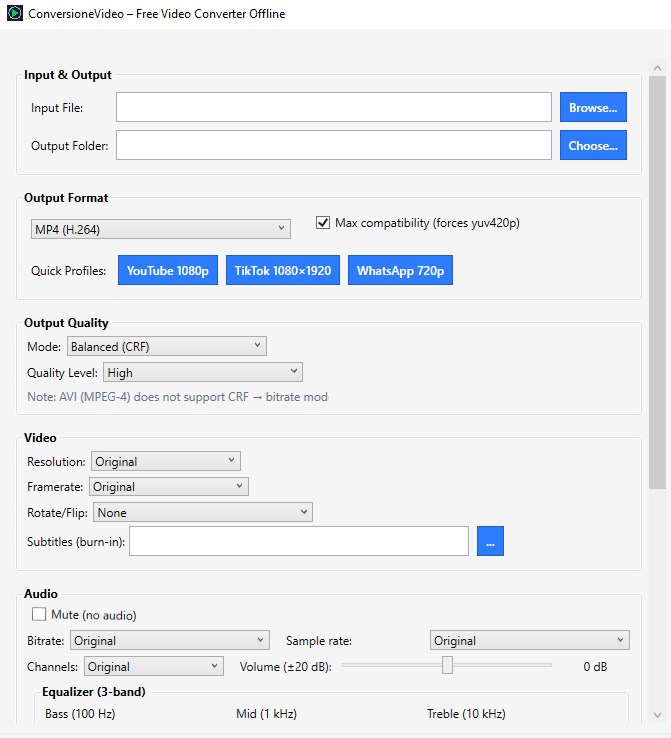
Open a file, set Resolution to Preset or Custom, and choose your target size. The converter uses high‑quality scalers and preserves aspect ratio by default. For vertical outputs select 1080×1920, and enable Max compatibility to force yuv420p when broad playback support is required.
You can lock framerate to 30/60 fps independently and keep audio parameters on Original to avoid unnecessary re‑encoding.
In most cases yes, especially when you will edit again or display on large screens. Downscale only if you need smaller files or faster delivery.
Use 1920×1080 (Full HD) for YouTube/Vimeo on desktop, and 1280×720 when bandwidth is limited. For vertical platforms pick 1080×1920.
Yes. Lower resolutions require less bitrate for the same perceived quality. If you switch from 1080p to 720p, you can typically reduce bitrate by ~30–40%.
Keep the original aspect ratio. If you must force a different ratio (e.g., 16:9 → 1:1), crop before scaling. Avoid stretching.
FFmpeg’s high‑quality scalers are used under the hood (e.g., bicubic/lanczos). The app chooses safe defaults so edges stay crisp without ringing.
Usually no: you won’t gain real detail. Upscale only if a platform requires a minimum resolution or to match an existing project timeline.
Resolution and framerate are independent. Keep Original framerate when possible. Lock to 30 fps for general content or 60 fps for sports/gaming.
Choose the preset 1080×1920. If your source is horizontal, consider cropping the center instead of stretching.
Yes. Downscaling from 4K to 1080p preserves sharpness on laptops/phones and cuts file size dramatically — ideal for distribution.
Stick to MP4 (H.264), yuv420p, and conventional resolutions (720p/1080p). Avoid odd widths like 853 px.
Get the latest version and convert videos offline with high‑quality scaling.
Download .EXE Visit Download page